
GA4 Conversion Tracking for Service Businesses: The Setup That Actually Works
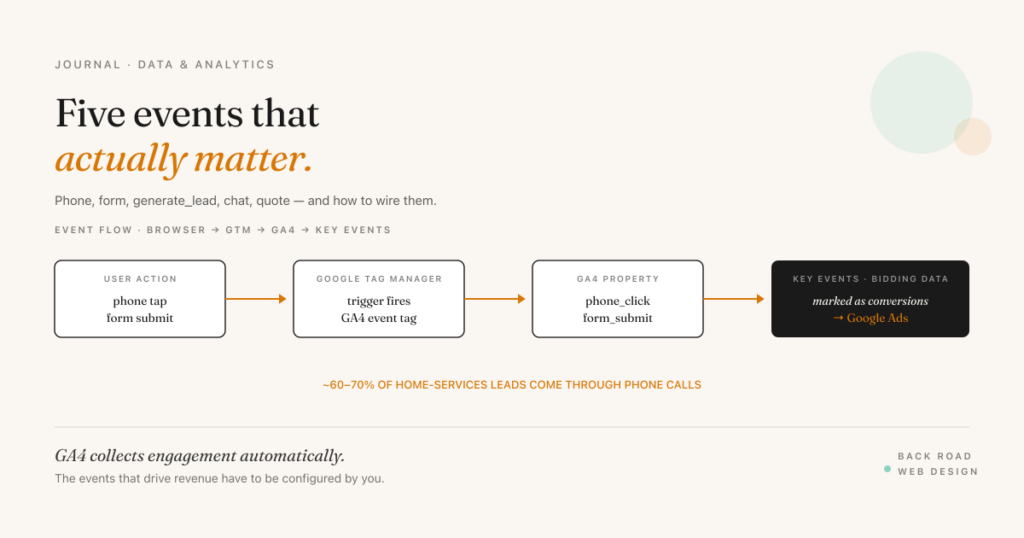
The most common GA4 setup I see on service-business sites is the same: install the tag, watch the dashboard fill up with sessions and engaged-users numbers, and assume that’s tracking. It isn’t. GA4 collects engagement data automatically, but the actions that actually matter for a service business — phone clicks, form submissions, chat starts, quote requests — don’t track themselves. They have to be configured.
This post walks through the GA4 conversion tracking setup that service businesses need: the events that matter, how to mark them as key events, the GTM-based setup that reliably captures phone calls and form submissions, and the implementation mistakes that quietly inflate or destroy your data.
The events that matter for service businesses
GA4 has a default set of events it tracks automatically — page views, scrolls, outbound clicks, file downloads, video engagement. None of those are the events that matter for a service business. The actions that drive revenue are different:
- phone_click — fired when someone taps a tel: link or click-to-call button. For home services specifically, about 60-70% of leads come through phone calls. If you’re only tracking form submissions, you’re missing most of your conversion data.
- form_submit — fired when a contact form, quote form, or any lead-capture form successfully submits. The trigger needs to fire on actual successful submission, not just on form-button-click (which fires regardless of whether the submit succeeded).
- generate_lead — Google’s recommended event name for a qualified lead action. Distinct from form_submit if you want to separate “any form” from “real lead form.” For most service businesses, form_submit and generate_lead can be the same event.
- chat_start — if you have a chat widget (Intercom, Drift, Tawk, etc.), this fires when a visitor initiates a chat conversation.
- quote_request — for businesses where the quote form is distinct from a general contact form. Lets you separate “tire-kicker contact” from “high-intent quote request.”
These five events cover the conversion surface for the majority of service businesses. E-commerce businesses need additional events (purchase, add_to_cart, etc.) but those are outside the scope of this post.
Why Google Tag Manager (and not direct GA4)
GA4 has a built-in event-creation interface in the admin panel that looks like it should solve this problem. It mostly doesn’t. The built-in event creator can do basic things — fire on a thank-you page URL match, for instance — but anything more nuanced fails. Click-text matching is unreliable, multi-condition triggers are clunky, and there’s no preview/debug mode for the events themselves.
Google Tag Manager (GTM) is the right home for service-business event tracking. It’s free, it has a mature preview-and-debug interface, and it gives you proper control over triggers, variables, and tag firing logic. GTM provides more accurate conversion tracking, lets you verify that your conversions are firing, and tracks conversion actions relevant to your business.
The setup is: GTM container installed on the site, GA4 tag fired by GTM, custom event tags fired by GTM, all events flowing into the GA4 property. The GA4 property is just the data destination; GTM is where the logic lives.
Phone click tracking, the right way
Phone clicks are the most under-tracked conversion event for home services and medical practices. The setup in GTM is straightforward but specific:
- Trigger type: Click — Just Links
- Trigger condition: Click URL contains
tel: - Tag type: GA4 Event
- Event name:
phone_click(lowercase, underscore — GA4 naming convention) - Event parameters (optional but useful):
page_location,page_title,link_url
That’s the whole setup. Publish the container, test in GTM Preview mode by clicking a phone number on the site, and verify the event fires in GA4 DebugView within seconds.
Mobile vs. desktop matters here. On a phone, the tap dials the number; on a desktop, the click typically does nothing (unless there’s a default tel: handler configured). Both fire the GTM trigger. Most service businesses see 90%+ of phone clicks come from mobile, which makes sense — desktop users tend to copy-paste numbers rather than click them.
Form submission tracking, the right way
Form tracking is more nuanced than phone tracking because there are several form plugins (Contact Form 7, Gravity Forms, WPForms, Squarespace native forms, Shopify contact forms) and several reasonable trigger patterns. The most reliable pattern for most sites:
- Use a thank-you page redirect. Configure your form plugin to redirect to a unique URL after successful submission (e.g.,
/thank-you/or/thanks-quote-request/). - Trigger in GTM: Page View where Page Path contains
/thank-you - Tag: GA4 Event with name
form_submitorgenerate_lead
This pattern is more reliable than form-element-listener triggers because it only fires when the form actually succeeded — not when the user clicked submit and got a validation error.
If you have multiple forms (a general contact form, a quote request form, a newsletter signup), give each one a unique thank-you URL and a separate GA4 event. That way the dashboard can distinguish “general inquiry” from “high-intent quote request.”
Marking events as key events
Setting up an event in GA4 doesn’t mark it as a conversion. That’s a separate step. The event has to fire at least once first (so GA4 knows it exists), then in Admin → Data Display → Events, toggle the “Mark as key event” switch.
Note: GA4 changed the terminology in 2024 from “conversions” to “key events.” Same concept, different name. Older guides will say “Mark as Conversion” — same toggle, just renamed.
Without this step, the events fire but don’t appear in conversion reports, don’t feed into Google Ads bidding, and don’t show up in the conversion-funnel analyses that GA4 makes available. Creating events is step one. Marking them as conversions is step two. Without this step, GA4 treats a form submission the same as a page scroll.
Linking GA4 to Google Ads
The last piece of the conversion-tracking setup is linking GA4 to Google Ads. Admin → Product Links → Google Ads Links → Link. Select the Google Ads account, enable conversion import.
Once linked, the key events from GA4 can be imported as Google Ads conversion actions, which means Google Ads can use them for automated bidding. Without this link, Google Ads has to use its own conversion tracking pixels (which are a separate, parallel setup) — possible but more error-prone, and you end up with two conversion-counting systems that may not agree.
Common mistakes that wreck the data
Double-counting form submissions
If your form fires both a “form_submit” event AND counts the thank-you page view as a separate conversion, you’re double-counting every lead. Pick one. The thank-you page redirect pattern is more reliable; if you use that, don’t also fire a form-submit event from the form itself.
No internal IP filter
Your own team browsing the website inflates everything — page views, sessions, conversion events. For businesses where the team browses the site frequently, this can meaningfully distort the data. Set up an internal traffic filter in GA4 (Admin → Data Streams → Configure Tag Settings → Define internal traffic) and exclude your office IP and any team members’ home IPs.
Not verifying in DebugView
GA4’s DebugView (Admin → DebugView) shows live events as they fire. If you’ve set up a phone_click event but never verified it in DebugView, you don’t know if it’s firing. Many “tracking is broken” diagnoses end with a five-minute DebugView check that reveals the trigger never fired in the first place.
Inconsistent event naming
“PhoneClick” vs “phone_click” vs “phone-click” vs “Phone Click.” GA4 treats these as different events. Pick one naming convention (the standard is lowercase with underscores) and use it consistently. If you’ve already shipped events with a different naming scheme, GA4’s event-rename feature can consolidate them — but it’s much easier to start consistent than to clean up later.
Call tracking integration
For service businesses where phone calls are a major lead channel, click-tracking the tel: link is necessary but not sufficient. It tells you when someone clicked the number; it doesn’t tell you whether the call connected, how long it lasted, or what the caller said.
The next-step upgrade is a call-tracking platform like CallRail. CallRail integrates with GA4 by sending call, text, chat, and form submission data to events you’ve created. Dynamic phone number swapping shows which page or ad source produced each call. The result is a substantially clearer picture of which marketing channels produce calls that convert.
Call tracking adds cost ($45–$200/month for most service businesses depending on call volume) and a small amount of setup complexity. For businesses where phone is the dominant channel, the visibility usually pays for itself quickly.
Score your GA4 setup
GA4 Conversion Tracking · 8 Items
Score your GA4 setup.
Want help getting your GA4 setup right?
I’ll audit your current GA4 + GTM setup, identify what’s tracking and what’s silently broken, and rebuild the conversion events that matter for your business. Free initial audit.
Get a free GA4 audit →